Moving 800 Pages into WordPress from a Spreadsheet, Without Duplicates or Regrets
The job sounds small when it's described. "We have a spreadsheet of our branches. Can you make a page for each one?" Or: "The old system has 800 product descriptions. We need them on the new WordPress site by the launch."
Then someone opens WordPress, clicks Add New, and starts pasting. Title, paste. Content, paste, fix the formatting. Set the category. Upload the image. Publish. Next row. At four minutes a page, 800 pages is seven working days of the most boring work in the company, and by day three the categories are inconsistent and nobody remembers which rows are done.
We built SteadyPost, a free WordPress plugin, because we kept doing this job for clients moving content out of systems that were being retired. This post is about how to do a bulk import so that it works the first time, and so that it can be run again next month without making a mess.
The three ways bulk imports go wrong
Every importer we tried before writing our own failed in at least one of these ways.
- Duplicates on the second run. You import 800 rows, spot a typo in the spreadsheet, fix it, import again. Now you have 1,600 posts, half of them wrong.
- Half-finished runs you can't undo. The import stops at row 412 with a timeout. Some posts exist, some don't, and the only way back is deleting them by hand, hoping you don't delete anything that was already there.
- Mistakes you only see after publishing. The category column was mapped to tags. The image filenames didn't match. The publish date column was read as American dates. All of it is live before anyone notices.
The fixes for these are not clever. They are the things any careful person would want: a preview before anything is saved, an import that recognises its own posts, and an undo button. Most importers skip them because they are more work to build than the import itself.
Start from the sheet, not the import screen
Half of import problems are spreadsheet problems, so SteadyPost starts with the spreadsheet. Download a template from the plugin and you get an Excel file with a frozen header row, a dropdown for the Status column, and an Instructions sheet explaining each column. Columns for your site's own custom fields and custom taxonomies are added automatically, so a site with an "Opening hours" field gets an "Opening hours" column.
Fill it in with Excel, Google Sheets or LibreOffice. Content can be plain text, Markdown or HTML, detected row by row, and block-editor markup is kept exactly as it is. Images are referred to by filename: write hero-shah-alam.jpg in the image column, upload a zip of the images alongside the sheet, and each one is added to the media library once, even if six rows use it.
If you already have a spreadsheet in a different shape, you don't have to rebuild it. Map its columns to WordPress fields on the Import screen and SteadyPost remembers the mapping.
Dry run: see the before and after
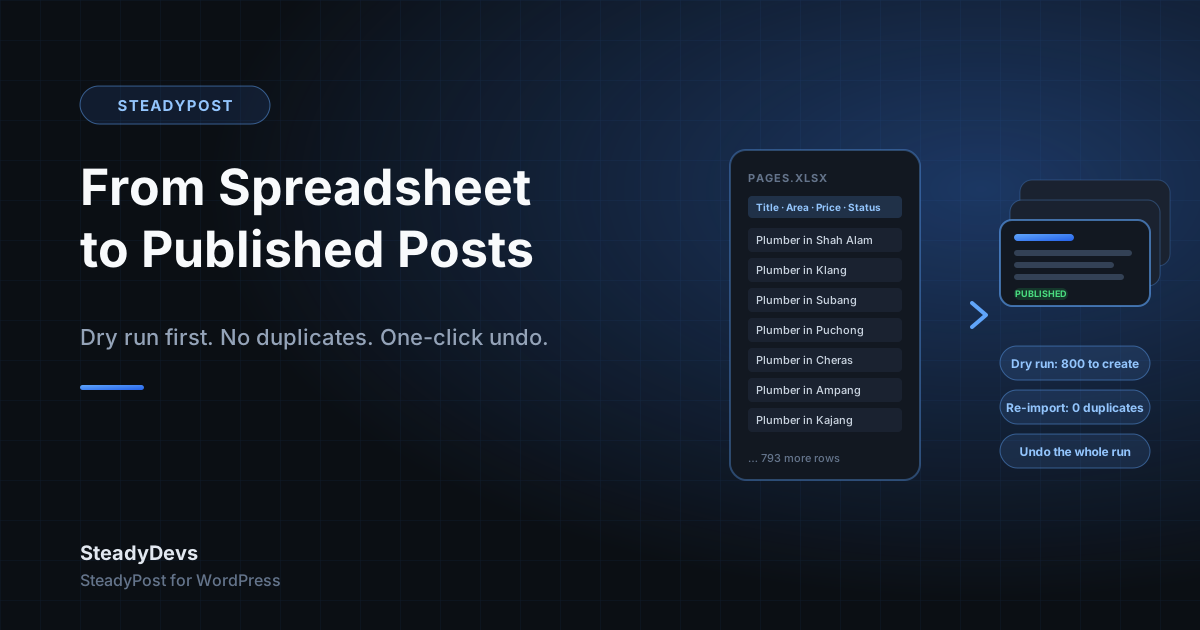
Before anything is saved, run the import as a dry run. It shows every row and what would happen to it: created, updated, skipped or, for rows that have disappeared from the sheet, drafted or trashed. For each post that would be updated, it lists every field that would change, with what it says now and what it will say after.
It also flags the things that go wrong quietly: categories that don't exist yet and would be created, authors who don't match a user, images that aren't in the zip. You fix those in the sheet, run the dry run again, and only press Import when the preview says what you expect.
Do the first import with ten rows, not eight hundred. Check the ten pages in the browser, fix whatever is off in the template, then import the rest. The dry run makes this cheap.
Re-import without duplicates
SteadyPost remembers which post each row became. Run the same sheet again and it updates those posts instead of creating new ones. Rows that haven't changed since the last import are skipped, so re-importing a sheet of 800 rows to fix 3 of them takes seconds.
Two details matter here. A post that someone has edited in WordPress since the last import is always updated, so the sheet wins, which is what you want when the sheet is the source of truth. And when a row is deleted from the sheet, you choose what happens to its post: nothing, back to draft, or into the Trash. The dry run lists those first, so a row deleted by accident doesn't take a page with it.
One template, a page for every row
The branches-and-locations job has a better answer than 800 rows of copied text. Write the page once as a template and let each row fill in the details.
Put a column name in double braces anywhere in the title, slug, content, excerpt, parent page or SEO fields: Plumber in {{Area}}. Give empty cells a fallback: From {{Price|RM80}}. Show a sentence only when a column has a value: {{#Landmark}}Five minutes from {{Landmark}}.{{/Landmark}}. A row's own cell always wins, so the three branches that deserve hand-written copy can have it while the rest use the template.
A Parent column files each page under another by title, slug, path or ID, so a single sheet builds /locations/selangor/petaling-jaya/ with the right hierarchy, page order and template.
Undo the whole run
Every import is recorded with its full row-by-row log, and every run can be undone. Posts the run created go to the Trash. Posts it updated are restored to the revision saved just before the import touched them. Posts it drafted or trashed for a deleted row get their earlier status back. An import that turns out to be wrong at 4:55pm is reversed by 4:56.
Bulk-editing what's already there
The same machinery works backwards. Export any post type, filtered by status, category or date, to Excel or CSV. Edit 300 SEO descriptions in a spreadsheet, where you can see them side by side, then upload the file and they're all updated. This works for posts SteadyPost didn't create, which makes it a bulk editor for an existing site, not only an importer for a new one.
For developers
wp steadypost import pages.xlsx --dry-runfrom WP-CLI, with--rows=2,5to pick rows,--missing=draftfor deleted rows and--format=jsonfor scripts. Imports from the command line use the same settings and show in History.wp steadypost historyandwp steadypost undo <run-id>.- SEO columns are written to Yoast SEO, Rank Math or SEOPress, whichever is active, or to meta keys you name.
- Optionally, read rows straight from a Google Sheet and re-import on a schedule, or point a row at a Google Doc for its body. If you don't use the Google features, the plugin makes no outside requests at all.
When it's a bigger migration
A spreadsheet is a good halfway house for content leaving an old system. Export from the old database into Excel, clean it up where everyone can see it, then import. The cleaning is where the real decisions get made: which of the 800 products still exist, which categories merge, what the URLs should be so the old links keep working.
If the export itself is the problem, because the old system is a database nobody has documentation for, that is the part we can do for you. The import afterwards you can do yourself.
Download SteadyPost
Free, open source, listed on WordPress.org. Templates, dry run, re-imports without duplicates, undo and export, with no account and no paid tier.
Get it on WordPress.orgFrequently Asked Questions
Yes. Every feature described here is in the free plugin on WordPress.org, under the GPL. There is no paid version and no row limit.
Excel (.xlsx) and CSV. Optionally, a Google Sheet by link or through a service account for private sheets.
Yes. Pages can be filed in a hierarchy with a Parent column, given a page order and a page template. Custom post types and their custom fields and taxonomies are supported, and the templates add the columns for them automatically.
Block markup in a cell is kept exactly as it is. Plain text and Markdown are converted to blocks; HTML is kept as HTML.
No. Uploaded spreadsheets are stored in a private folder in wp-content/uploads that is blocked from the web and replaced each time you upload a new one. The only outside requests are to Google, and only if you choose to use the Google Sheets or Docs features.
Open History and undo the run. The posts it created go to the Trash and the ones it updated are restored. Then fix the cause, usually a server timeout on a very large zip of images, and run it again. Rows that already imported correctly are recognised and not duplicated.