Skip to content

SteadyPost · free WordPress plugin

Your spreadsheet, published.

Plan posts in Excel, CSV or Google Sheets. SteadyPost turns every row into a WordPress post — content, categories, images and SEO fields — and lets you check it, undo it and bulk-edit it later.

Version 1.4.0 · GPL, free forever · WordPress 6.0+ · PHP 7.4+ · no account, no sign-up · try it with our sample spreadsheet

content-calendar-q4.xlsx
DRY RUNNOTHING SAVED

2 would be created · 8 would be updated

Will create the category “Seasonal”. Ready when you are.

Built for Content calendarsBulk SEO updatesProduct & directory listingsEvent listingsSite migrationsAgency handoversLocation & service pages

How it works

From a spreadsheet to published posts, without the guesswork

Every step happens inside your WordPress dashboard. These are real screenshots of the plugin.

01 · Template

Start from a template, not a blank page

Download a blank or sample spreadsheet, fill in one row per post, and upload it back. The columns map themselves.
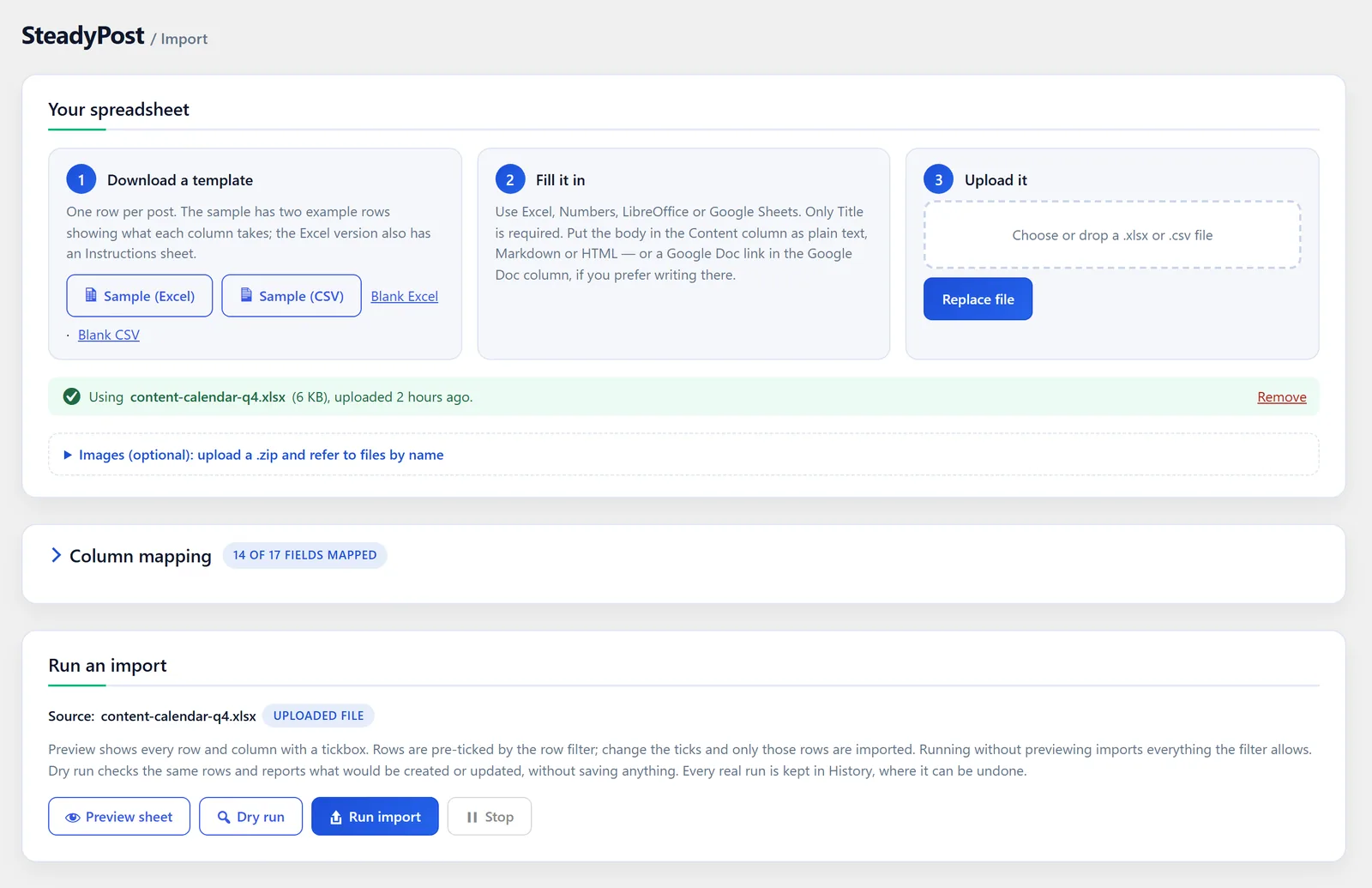
  • Excel template with a Status dropdown and an Instructions sheet
  • Columns for your own custom fields, ACF fields and taxonomies
  • Only Title is required — everything else is optional
  • Excel, Numbers, LibreOffice and Google Sheets files all work
SteadyPost Import screen: download a template, fill it in, upload it, with the column mapping and the Run an import panel below.

02 · Preview

See every row before it becomes a post

The preview shows every row and column with a tickbox. Import all of them, a handful, or only those your "ready" column approves.
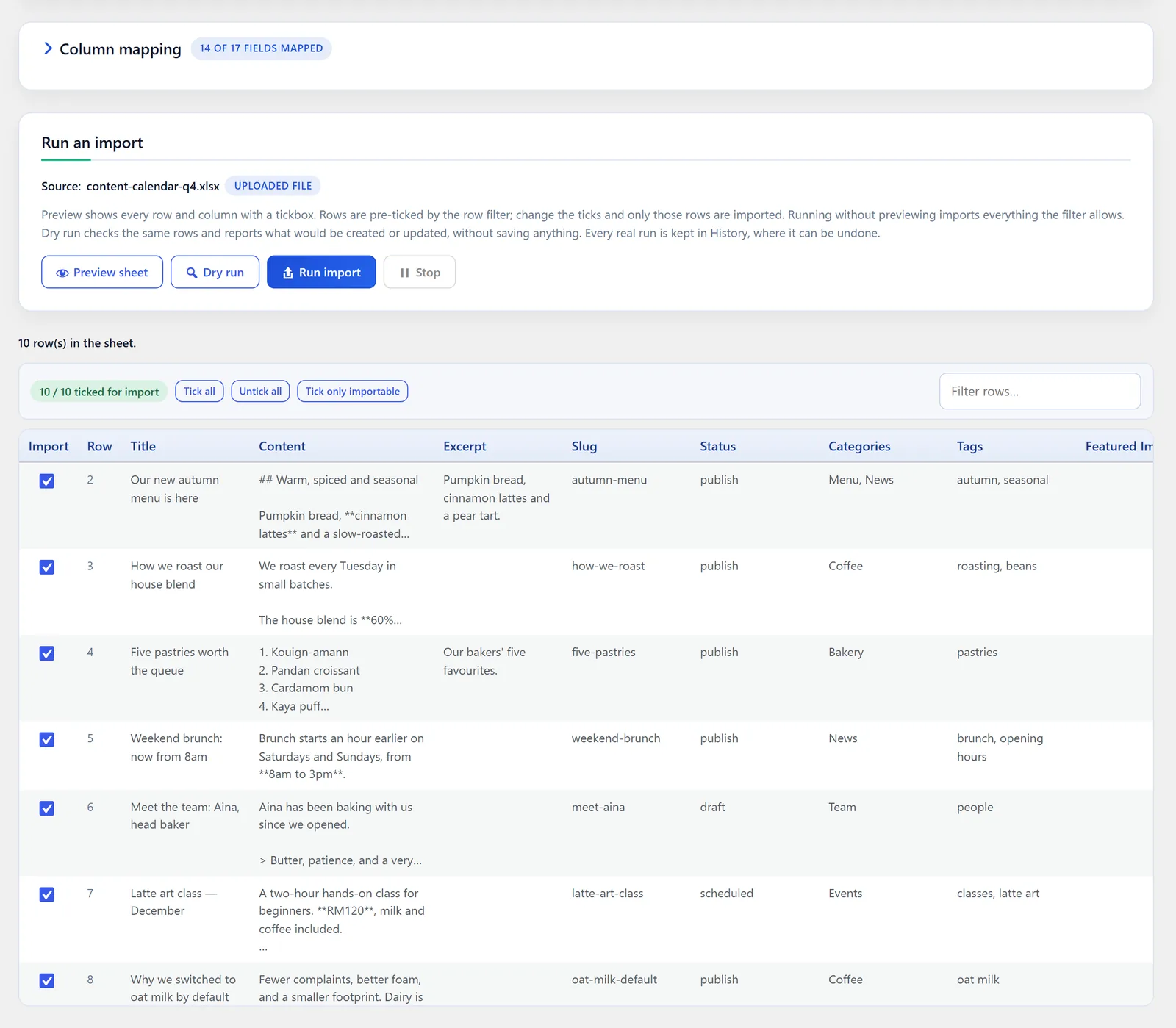
  • Tick, untick and filter rows before anything happens
  • A row filter column — a tickbox, a status, or "not yet imported"
  • Rows that can't import are flagged with the reason
SteadyPost preview: every spreadsheet row with a tickbox, showing title, content, slug, status, categories and tags.

03 · Dry run

Know what will happen. Then do it.

A dry run checks every ticked row and tells you exactly what the real import would do — and saves nothing.
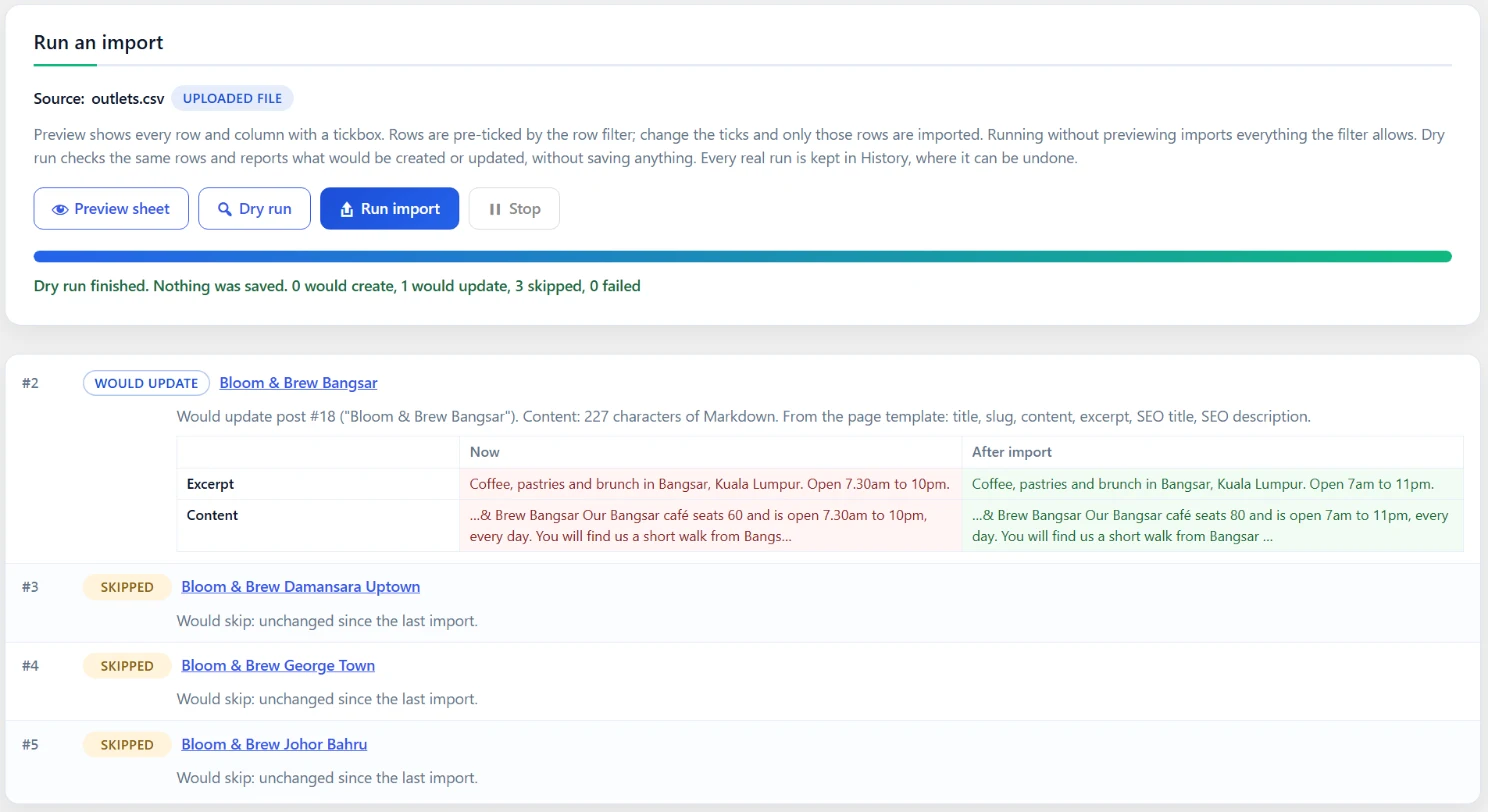
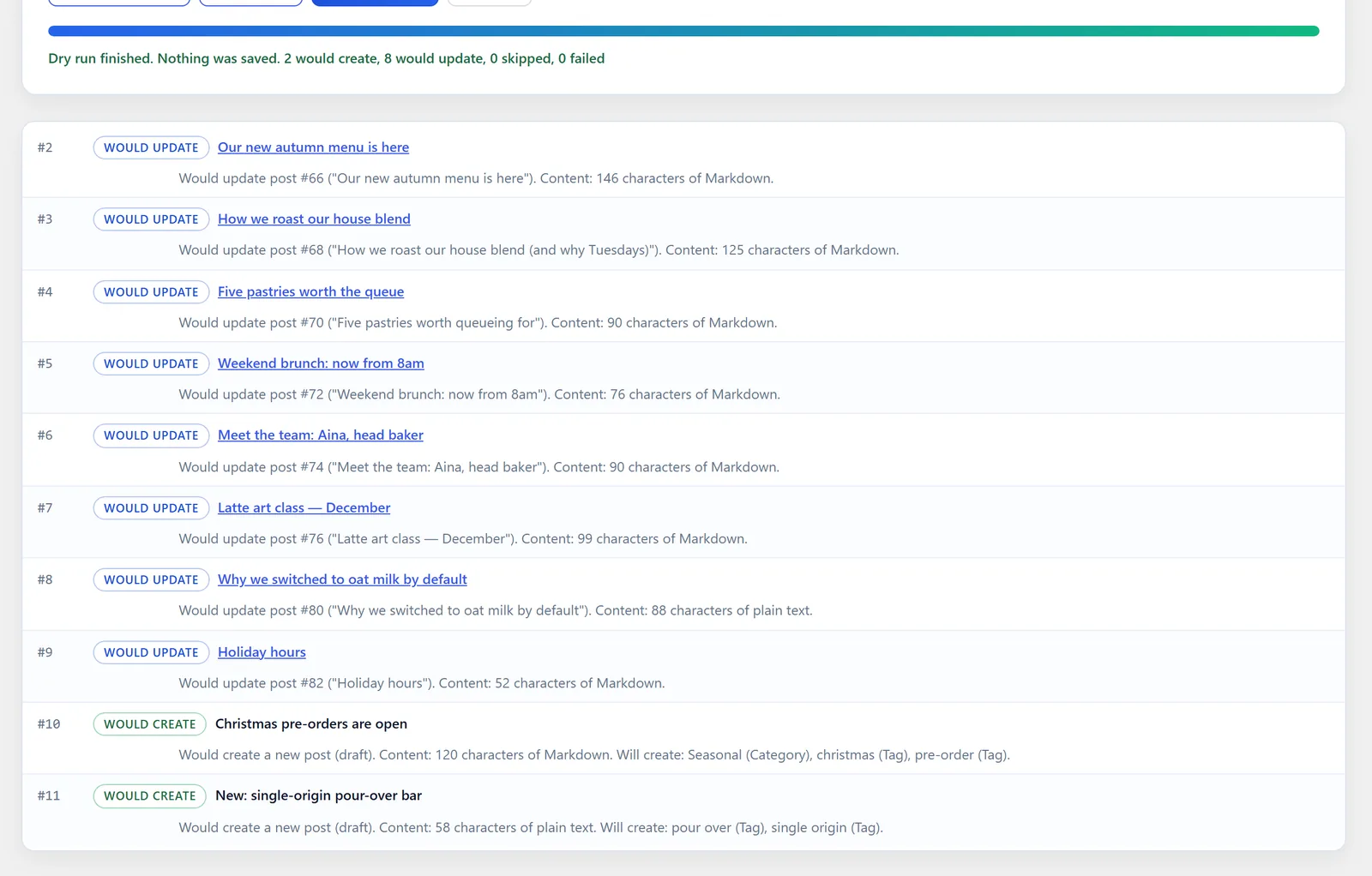
  • Which posts would be created, and which updated
  • Categories and tags that don't exist yet
  • Authors, images and dates that can't be found or read
  • For each post it would update: every field that would change, now and after
  • Rows that haven't changed since the last import are skipped

04 · History & undo

Changed your mind? Undo the whole run.

Every import is kept with its full log. Undo sends the posts a run created to the Trash, and puts the posts it updated back exactly as they were.
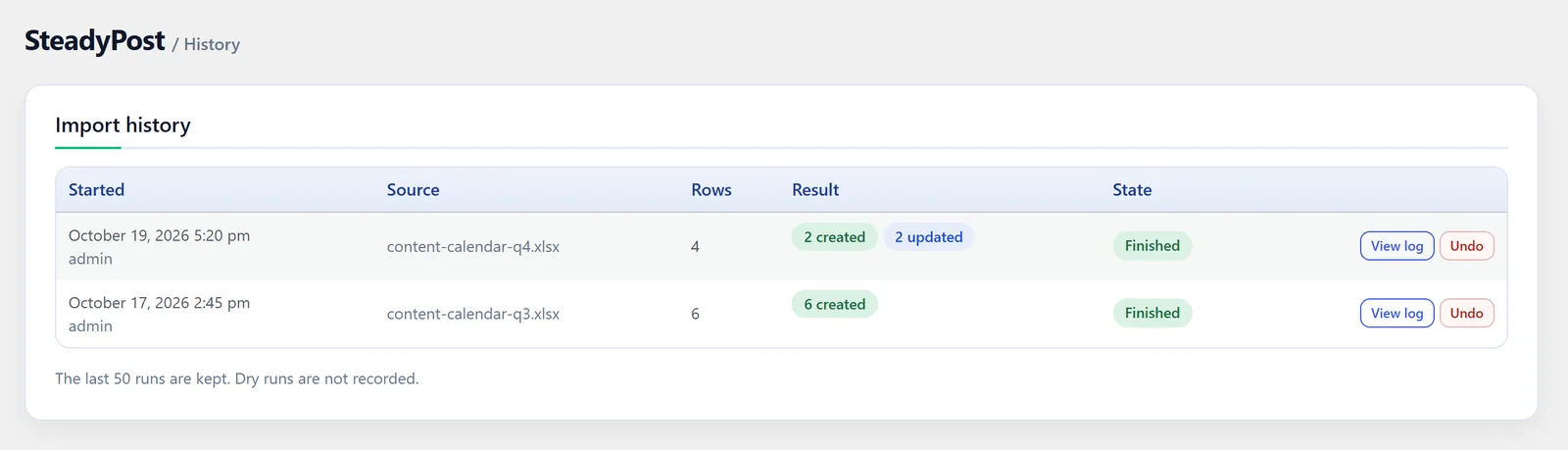
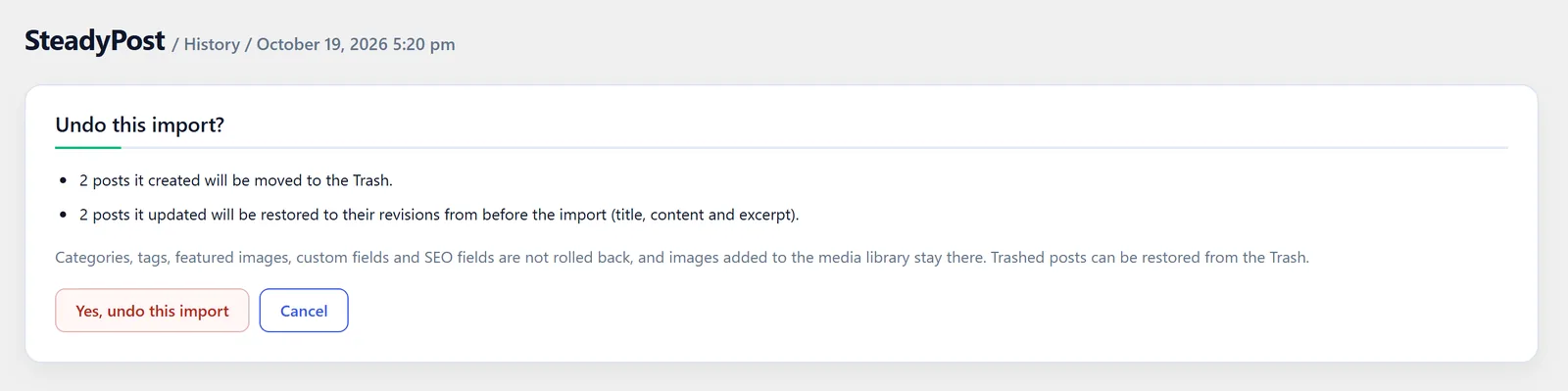
  • A revision is saved just before each post is changed
  • You see what undo will do before you confirm
  • Trashed posts can still be restored from the Trash

05 · Bulk edit

Edit hundreds of existing posts in Excel

Export posts — any post type, filtered by status, category or date — edit the cells you need, and upload the file. Each row updates the post it came from, even posts SteadyPost never created.

- Meta Title: Autumn Menu | Harbour Lane Café
+ Meta Title: Autumn Menu 2026 — Pumpkin Bread & Spiced Lattes

Fix 200 SEO titles in one sitting, then upload once.
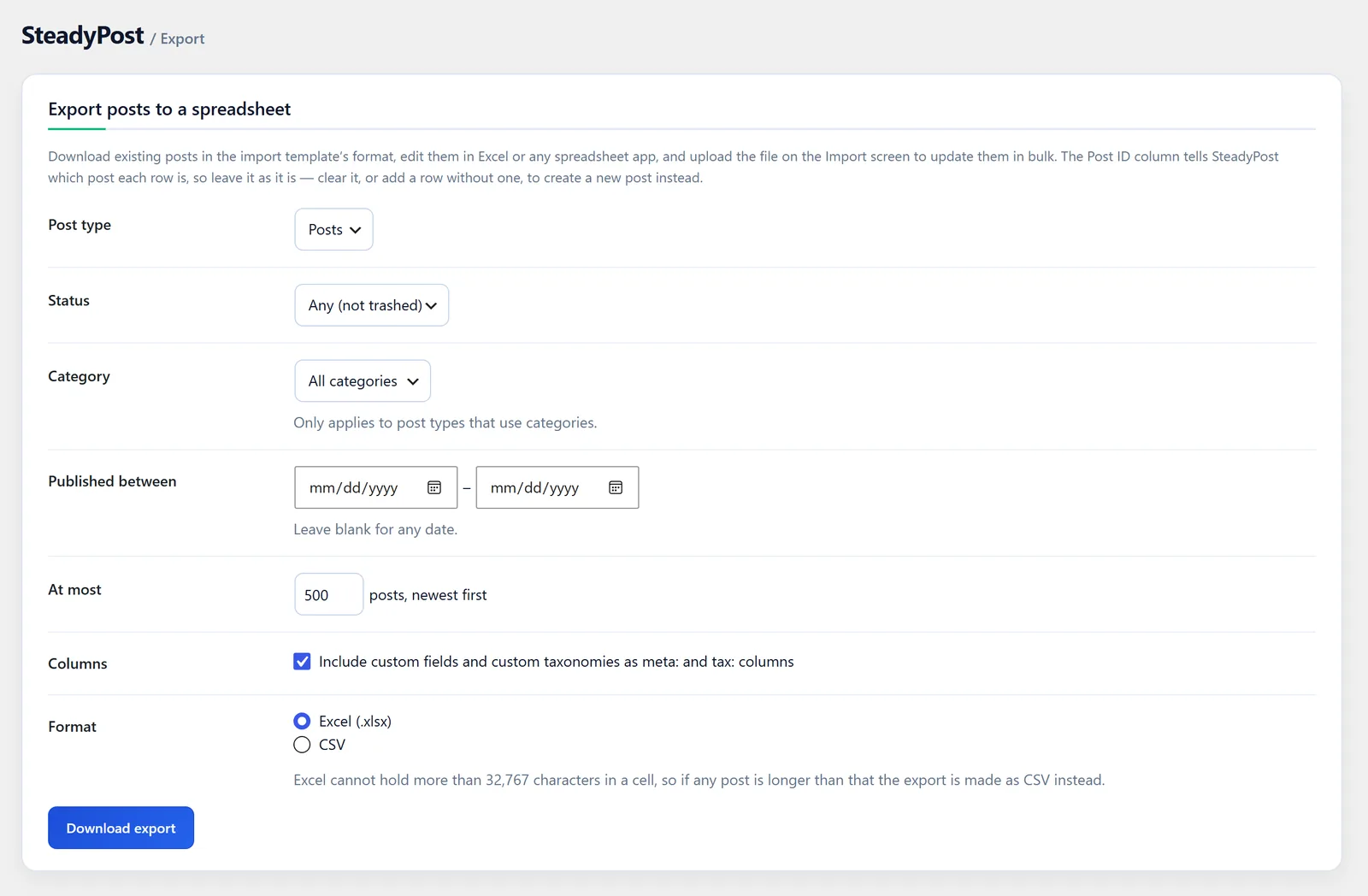
SteadyPost Export screen: choose post type, status, category and date range, include custom fields, and download as Excel or CSV.

06 · Page templates

One template, a page for every row

Write a page once, with column names in double braces, and every row fills in its own details: one page per outlet, city, service or product.
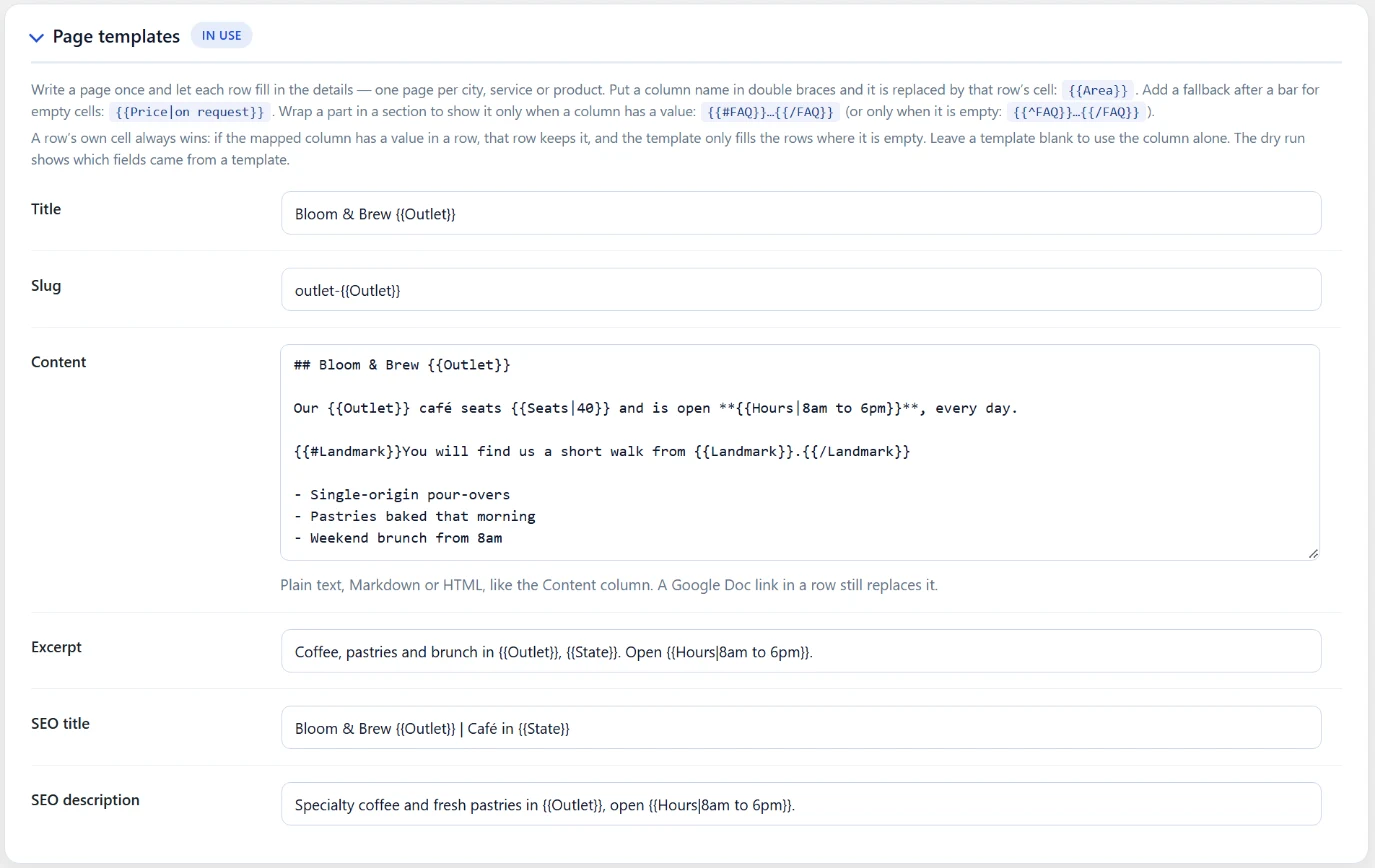
  • Placeholders in the title, slug, content, excerpt and SEO fields
  • Fallbacks for empty cells, and sections that only show when a cell has a value
  • A row's own cell always wins, for the pages that need hand-written copy
SteadyPost page templates settings: title, slug, content, excerpt and SEO templates with {{Outlet}}, {{State}} and {{Hours}} placeholders.

What's inside

Everything a bulk import should have

Made for the people who actually run content: marketers, editors and the agencies building their sites.

Excel & CSV, properly

.xlsx and .csv, including the quirks of real files: Excel's Windows encoding, semicolon separators, typed dates and hyperlinked cells.

Plain text, Markdown or HTML

Write the body however you like; it's detected per row. Block-editor content is kept exactly as it is.

Images by filename

Upload a zip of images and write hero.jpg in a row — or reuse an image already in your media library. Each image is added once.

Re-import without duplicates

Run the same sheet again and the posts it created are updated in place, and rows that haven't changed are skipped. Nothing doubles up.

WP-CLI for developers

wp steadypost import with a dry run, plus history and undo, for scripts and agency workflows.

Categories, tags & taxonomies

Comma-separated, created if they're missing. Any custom taxonomy works through a tax: column.

Custom fields & ACF

Registered post meta and simple Advanced Custom Fields fields appear as template columns automatically.

SEO fields written for you

Meta title, description and keywords go straight into Yoast SEO, Rank Math or SEOPress — or meta keys you name.

Scheduling in your timezone

Set a publish date and status "scheduled". 9:00 means nine in the morning where your site is.

Google Sheets & Docs, optional

Prefer Google? Read rows straight from a Sheet on a schedule, and pull a post's body from a Google Doc, images included.

Works with

Fits the stack you already have

Nothing to replace. SteadyPost writes ordinary WordPress posts, so your theme, editor and plugins keep working as they do.

Microsoft ExcelGoogle SheetsApple NumbersLibreOffice Yoast SEORank MathSEOPressAdvanced Custom Fields Block editorClassic editorGoogle DocsAny post type

Get started

Free. Every feature. No catch.

Up and running in five minutes

  1. 01
    Install
    Plugins → Add New Plugin, search for SteadyPost, install and activate.
  2. 02
    Download the sample
    SteadyPost → Overview → Download sample spreadsheet.
  3. 03
    Fill it in and upload
    One row per post. The columns map themselves.
  4. 04
    Dry run, then import
    Check what will happen, run it, and undo from History if you need to.

Bigger than a spreadsheet?

Moving thousands of posts out of an old system?

A spreadsheet covers most imports. If you're leaving a legacy CMS, an old database or a site nobody dares touch, our engineers can plan and run the move for you — redirects, images and SEO included.

FAQ

Common questions

Is SteadyPost really free?
Yes. Every feature on this page is in the free plugin, with no limits on rows, posts or sites, and it's open source under the GPL. There is no paid version. If you'd rather have someone do a large migration for you, that's a separate engineering service.
Which file formats can I upload?
.xlsx and .csv. Excel, Apple Numbers, LibreOffice and Google Sheets can all save one of those. Excel files are read from their first sheet. CSV files that Excel saves in Windows encoding, or with semicolons as separators, are detected automatically.
Will importing the same file twice create duplicate posts?
No. Each row is matched to the post it created — by a Ref column, the slug, or the title — and updated in place. You can turn that off in Settings if you'd rather skip rows that were already imported.
Can I undo an import?
Yes, from SteadyPost → History. Posts the run created go to the Trash, where you can still restore them. Posts it updated get back the title, content and excerpt they had just before the import, from a revision SteadyPost saved at that moment. Categories, custom fields and SEO fields aren't rolled back.
Can I bulk-edit posts that already exist?
Yes. Export them under SteadyPost → Export, edit the spreadsheet and upload it. The Post ID column tells SteadyPost which post each row belongs to, so it works for any post, not only ones SteadyPost created.
How do I write the post body?
In the Content column, as plain text (a blank line starts a new paragraph), Markdown such as ## Heading and **bold**, or HTML. SteadyPost detects which one per row. Or put a Google Doc link in the Google Doc column and that doc becomes the body.
How do images work?
Put an image URL in the Featured Image column and it's downloaded into your media library. Or upload a zip of images on the Import screen and refer to them by filename — hero.jpg as the featured image, or ![alt](photo.png) in the content. A filename that isn't in the zip is looked up in your media library. Each image is added once, however many rows use it.
Do I need a Google account?
No. SteadyPost works entirely from files you upload. Google Sheets and Google Docs are an optional extra for teams who already plan content there.
Does it work with my SEO plugin?
Meta title, description and keywords are written into Yoast SEO, Rank Math or SEOPress — whichever is active — as well as Mikado/Qode theme SEO fields, or any meta keys you name. All in One SEO stores its data in its own table, so it isn't supported.
What are the requirements?
WordPress 6.0 or newer and PHP 7.4 or newer. Excel files need PHP's Zip extension, which almost every host has; without it, CSV still works.
Is it on WordPress.org?
Yes, it's listed at wordpress.org/plugins/steadypost. Install it from Plugins → Add New Plugin in your dashboard, and updates arrive there automatically.

Stop copying and pasting posts.

Download SteadyPost, try it with our sample spreadsheet, and publish your next batch in minutes.

Question, bug or feature request?

Tell us what you're importing and what's in your way. We usually reply within one business day.